1
Start here
Click the button below to get the installer.

Get the desktop application to bet on sports and play live casino, roulette, slots, table games, and more. It runs on Windows and macOS, free to download, and mirrors the full website. You get faster launch, a full-screen interface, and fewer lags during live markets.
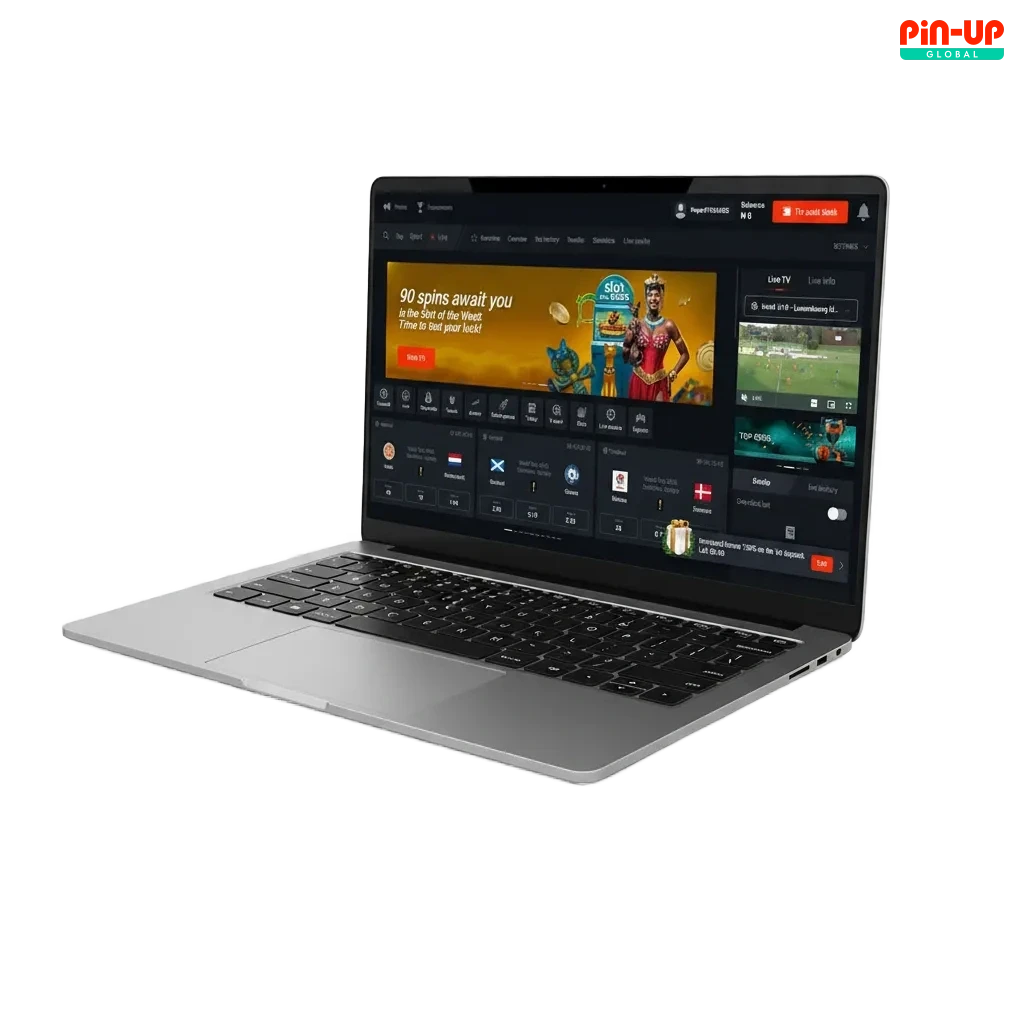
The PC client delivers the full betting and casino experience in a focused desktop window. Advantages include quicker load times, stable performance during live betting, and easy multi-window play.
| Category | Sports betting; Live Casino; Slots; Table Games; Game Shows; Instant Games |
| Compatible with Windows | Windows 10, Windows 11 |
| Compatible with macOS | macOS 11 Big Sur or later (Intel and Apple silicon) |
Installing the desktop client suits frequent bettors and casino players. Review these points before you proceed.
| Pros | Cons |
|---|---|
| Faster load times than the website | Requires storage space |
| More stable live betting and streaming | Needs installation and occasional updates |
| Full-screen casino UI for slots and tables | Not ideal on shared office computers |
| Fewer browser pop-ups and distractions | |
| One-click login and saved preferences | |
| Multi-window betting and game view | |
| Lower chance of random browser crashes |
The Windows application is light and compatible with most modern computers. Minimums: Windows 10, 4 GB RAM, 200 MB free space, stable internet.
Click the button below to get the installer.
Choose a folder on your computer and wait for the download to finish.
Double-click the file, then allow the Windows security prompt.
Pick your install folder and confirm.
Complete the process and launch the desktop client.
Enter your account details or create a new profile.
The Mac version supports Intel and Apple silicon devices. It runs on macOS 11 or newer.
Click the button below to get the .dmg file.
Double-click the .dmg to mount it.
Drag the app into the Applications folder.
If you see a security prompt, open System Settings > Privacy & Security and approve the app.
Open from Applications, then log in or create an account.
Updates improve security, speed, and game stability. Staying current also adds new features.
Account creation inside the PC app takes minutes. You get access to betting markets, casino games, payments, and promotions after sign-up.
phone number, email, or supported social account.
You do not need the PC app to use all services. The official website gives full access to betting, casino, live tables, cashier, and promotions. It runs on most computers through a modern browser, no installation needed. If you prefer not to install the Pin-Up for PC client, use the website and play straight away.
Help is available for desktop users every day. Use these channels to get quick answers.
Yes, the installer is free. Normal internet data charges from your provider may apply.
Yes, you can log in on several devices, but avoid sharing your credentials and sign out on public PCs.
No, it is a small app. Keep some extra space for updates and cached game content.
Yes, outcomes match the website because the same providers and systems handle gameplay.
Open Menu > Settings > Updates and choose Automatic or Manual, then apply your preference.
Updated: